
[VBA Extensions] Complete Guide to Calling the Windows API from VBA
When developing with VBA, you’ll inevitably run into problems that standard VBA features alone cannot solve. That’s where the Windows API comes in. By calling Windows APIs from VBA, you can tap directly into Windows system features and build far more flexible and powerful tools than pure VBA would ever allow.
This page is a practical guide to using the Windows API from VBA. It starts with the basic concepts and walks through how to declare API functions, pass arguments, and handle return values — all with concrete code examples. Because the Windows API is built around C++-style concepts such as memory, pointers, and handles, it can feel a little advanced to developers who have only worked with pure VBA.
That said, the range of what becomes possible is enormous, so it’s well worth the effort to learn.
All sample code on this site is written for 64-bit environments by default.
Although the articles are labeled “Excel VBA," the same techniques apply to VBA in any host application.
What Is the Windows API?
The Windows API is, in simple terms, a set of features built into Windows that your code can call. By calling into it from VBA, you can use all sorts of system-level functionality that Windows provides. Most of these features are things VBA alone cannot do on its own.
For example, you can build a tool like the one below — it reads the RGB value of any pixel on the screen. Even a small tool like this relies on features that plain VBA simply cannot offer.
The Windows API — also called WinAPI or Win32 API — is the standard set of system services shipped with Windows, and physically it is a collection of DLL (Dynamic Link Library) files. Each of these DLLs exposes many functions used internally by Windows itself, and they can be called from a wide range of languages including C++ and VBA.
The DLL files that make up the Windows API live in C:\Windows\System32. This directory contains many system-critical files that the Windows OS depends on to run. By calling functions inside those DLLs from VBA, you unlock a huge variety of behaviors that normal VBA cannot reach.
In VBA, calling a Windows API function only requires a small “magic incantation" at the top of the module — no additional references, no special project setup. Everything on the pages below shows how to use that pattern for dozens of real API functions and how to combine them in practical samples.
As you might guess from the name, Windows API functions call into Windows itself, so they are not usable on operating systems other than Windows. (In other words, the corresponding DLL files in C:\Windows\System32 need to exist.)
 Calling a Windows API function

A Windows API call is really just a call into a function inside a DLL. To call a DLL function from VBA, you declare it at the top of your module using a fixed pattern — the “magic incantation" programmers like to talk about.
Declare PtrSafe Sub FunctionName Lib “DllName" (arguments)
Declare PtrSafe Function FunctionName Lib “DllName" (arguments) As ReturnType
In most cases, you only have to rewrite FunctionName, DllName, arguments, and ReturnType to match the API you want to call. Once the declaration is in place, you can use the function from your VBA code just like any other procedure.
Here are two real examples:
Declare PtrSafe Sub Sleep Lib “kernel32" (ByVal dwMilliseconds As Long)
【32-bit, with return value】
Declare Function GetCursorPos Lib “User32" (lpPoint As POINTAPI) As Long
On a 64-bit host, you must add “PtrSafe" after “Declare“. Without it the code will raise a compile error and the macro will not run at all. On 32-bit (increasingly rare today) the keyword is not required. (Reference: PtrSafe keyword (VBA) — Microsoft Learn)
The word after “Declare PtrSafe …" must be “Sub" when the API has no return value and “Function" when it does — the same rule as for ordinary VBA procedures.
You can also prefix the whole declaration with Private or Public to control its scope, just like with regular VBA variables and procedures. Use whichever fits how you want to share the API call within your project.
Because API declarations are essentially fixed boilerplate, most people just copy-paste them.
Microsoft provides a consolidated list of PtrSafe-ready declarations in Win32API_PtrSafe.TXT.
Search that file for the function name you want, and you’ll find the 64-bit-ready declaration ready to copy.

The file above is included with the installer available from Microsoft’s official page: Office 2010 Help Files: Win32API_PtrSafe with 64-bit Support.
Windows API Function List
Below is a curated list of Windows API functions that open up new possibilities when called from VBA.
 Window-related functions

FindWindow: get a window handle by class name and caption
Partial-match FindWindow wrapper
Full-hierarchy FindWindow search
FindWindowEx: get a child window handle by class name and caption
GetWindowText: retrieve the caption of a given window
GetClassName: retrieve the class name of a given window
SetWindowText: change the caption of a given window to any text
GetWindowLongPtr: read window information such as window styles
SetWindowLongPtr: set window information such as window styles
SetLayeredWindowAttributes: configure transparency or color-key on a layered window
SetForegroundWindow: bring a given window to the foreground
GetActiveWindow: get the handle of the currently active window
GetNextWindow: get the handle of the window next to a given one in Z order
GetParent: get the handle of a window’s parent (or owner)
FlashWindowEx: flash a given window (and its taskbar button)
CloseWindow: minimize a given window
IsWindow: check whether a given window handle still exists
ShowWindow: show, hide, minimize or maximize a given window
MoveWindow: move and resize a given window
SetWindowPos: change the position, size, or Z order of a window
BringWindowToTop: bring a window to the top of its Z order
EnableWindow: enable or disable a given window
IsWindowVisible: check whether a window is currently visible
IsWindowEnabled: check whether a window is currently enabled
EnumWindows: enumerate all top-level windows
EnumChildWindows: enumerate the child windows of a given window
GetDesktopWindow: get the handle of the desktop window
GetShellWindow: get the handle of the shell’s default window
GetWindowRect: get the outer rectangle of a given window
GetClientRect: get the client-area rectangle of a given window
SetParent: change the parent of a given window
DestroyWindow: destroy a given window
Device Context (DC) functions
GetDC: get a handle to the non-client-area DC of a given window
GetWindowDC: get a handle to the DC of a given window
ReleaseDC: release a device context (DC)
GetPixel: read the RGB value of a pixel at a given screen coordinate
ClientToScreen: convert client-area coordinates to screen coordinates
ScreenToClient: convert screen coordinates to client-area coordinates
GetDeviceCaps: retrieve device context capabilities
CreateCompatibleDC: create a compatible memory device context
DeleteDC: delete a device context you previously created
SelectObject: select a GDI object into a device context
DeleteObject: delete a GDI object and release its resources
Menu functions
CreatePopupMenu: create a popup menu
AppendMenu: append a new item to the end of a menu
InsertMenu: insert a new item into a menu
SetMenuItemBitmaps: attach bitmap icons to a menu item
TrackPopupMenu: display a popup menu and read the user’s selection
DestroyMenu: destroy a menu and free the memory it used
Mouse cursor functions
SetCursorPos: move the mouse cursor to a given coordinate
GetCursorPos: get the current cursor coordinates
BMP / DIB functions
GetDIBits: read the pixel data of a bitmap
SetDIBits: write pixel data into a bitmap
CreateCompatibleBitmap: create a bitmap compatible with a given device
CreateDIBSection: create a directly-addressable DIB (Device-Independent Bitmap)
BitBlt: copy image data using a bit-block transfer
LoadImage: load a bitmap (or other image) from a resource or file
Sound functions
Beep: play a beep at a given frequency and duration
midiOutGetNumDevs: get the number of available MIDI output devices
midiOutOpen: open a specific MIDI output device
midiOutShortMsg: send a MIDI message to a MIDI output device
midiOutClose: close a MIDI output device you opened
mciSendString: play or stop an audio file
Clipboard functions
OpenClipboard: open the clipboard
EmptyClipboard: clear the contents of the clipboard
CloseClipboard: close the clipboard
GetClipboardData: read data in a given format from the clipboard
SetClipboardData: write data in a given format to the clipboard
IsClipboardFormatAvailable: check whether a given format is available on the clipboard
VBA × Windows API — Practical Samples
Clipboard samples
・Read a text string from the clipboard
・Write a text string to the clipboard
・Put a bitmap image onto the clipboard from VBA
Window-manipulation samples
・Get the executable path of the process that owns a given window
・Enumerate all window captions from VBA
・Bring a specific window to the foreground
・Keep a specific window always on top
・Make a VBA UserForm resizable
・Make a UserForm transparent or semi-transparent

・Draw rotated text on a UserForm

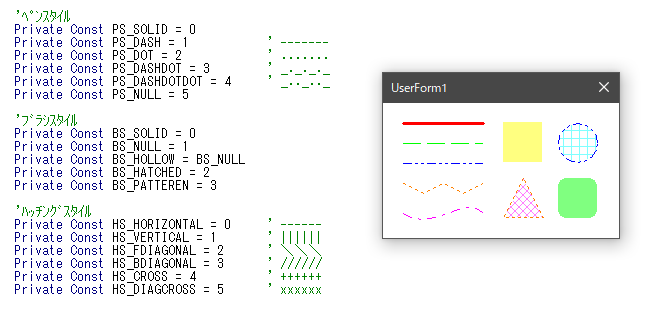
・Add a date picker (calendar) control to a UserForm

・Show the Windows Color-picker dialog from VBA

・Show a context menu when a UserForm is right-clicked

・Change the button labels on a MsgBox

・Change the owner window of a UserForm

・Build an indeterminate progress bar

・Drag a UserForm by its client area (not the title bar)

Other samples
・Enumerate every available font name from VBA

・Control MIDI from VBA using the Windows API
・Control the mouse (move the cursor, click) from VBA
・Pause a VBA macro for a given number of seconds [Sleep API]
・Detect pressed keys from VBA [GetAsyncKeyState API]
・Play audio files (.mp3 / .wav) from VBA [mciSendString API]
・Download an image from the internet with VBA [URLDownloadToFile API]
・Make a beep (alert sound) from VBA [Beep API]
Going Further with the Windows API
The Windows API is really just a way to reach into DLL files shipped with Windows and call the functions inside them from VBA.
And here’s the interesting part: you can also build your own DLL using Visual Studio and C++. In other words, you can write a function that neither VBA nor the built-in Windows API offers, package it into your own DLL, and then call it from VBA exactly the same way you call any other API.
For example, if you build a DLL that wraps OpenCV in C++, you can perform image processing, character recognition, face detection, and more — all from within VBA.
This is a step up from pure VBA because you need C++ and Visual Studio, but the page below walks through the basics of calling your own custom DLL functions from VBA. If this sounds interesting, give it a read.
 https://liclog.net/vba-dll-index/